DARKBEACON GUIDE
Tune gamepad movement
Shape left-stick or WASD output, choose immediate stopping or gradual deceleration after release, and tune movement timing and limits.
Applies to: Flux keyboards (61, 68, 84, 87, and 100), Flux 68, Flux 84, and Flux 87 regional models, Devil Breaker and related keyboards
What you will accomplish
Tune the left-stick or WASD output of a supported gamepad mode (The supported controller type the device presents to the connected computer) while keeping the original profile available for comparison.
Applies to
Steps
- Duplicate the current profile, map a small WASD control set, and confirm ordinary gamepad output before tuning movement.
- Open Gamepad Mode, then the Movement tab. Choose Reset and Apply movement, or leave every shaping group off for the first comparison.
- Under Output shape, enable the group and adjust Maximum X output and Maximum Y output conservatively. Choose Circle for smooth radial movement or Square when the target application benefits from stronger diagonal reach.
- Enable Adjust diagonal angle only when diagonals feel consistently too narrow or too wide. Change the angle in small steps and retest all four diagonals.
- Under Smooth transitions, begin with short Acceleration, Deceleration, and Direction reversal times. A value of 0 ms is immediate. Choose a Transition curve only after the timing feels predictable. If After full release is available, start with Stop immediately or follow Choose what happens after release to try gradual stopping.
- Leave Advanced movement off initially. If you want less mechanically identical full presses, add a narrow output range or a small natural variation, then test again. These controls must never be used to hide drift or an incorrect basic mapping.
- Select Apply movement and wait until DarkBeacon App reports that the settings match the keyboard. If it retains the draft but reports that synchronization failed, wait for the keyboard to become ready and select Retry. Test neutral, cardinal directions, diagonals, fast reversals, and a sustained full press in the target application.
- When the result is correct, save to device (Store the current settings on the device so they remain after the App disconnects or power is restored) and repeat the test after reconnecting.
Output shape and Smooth transitions
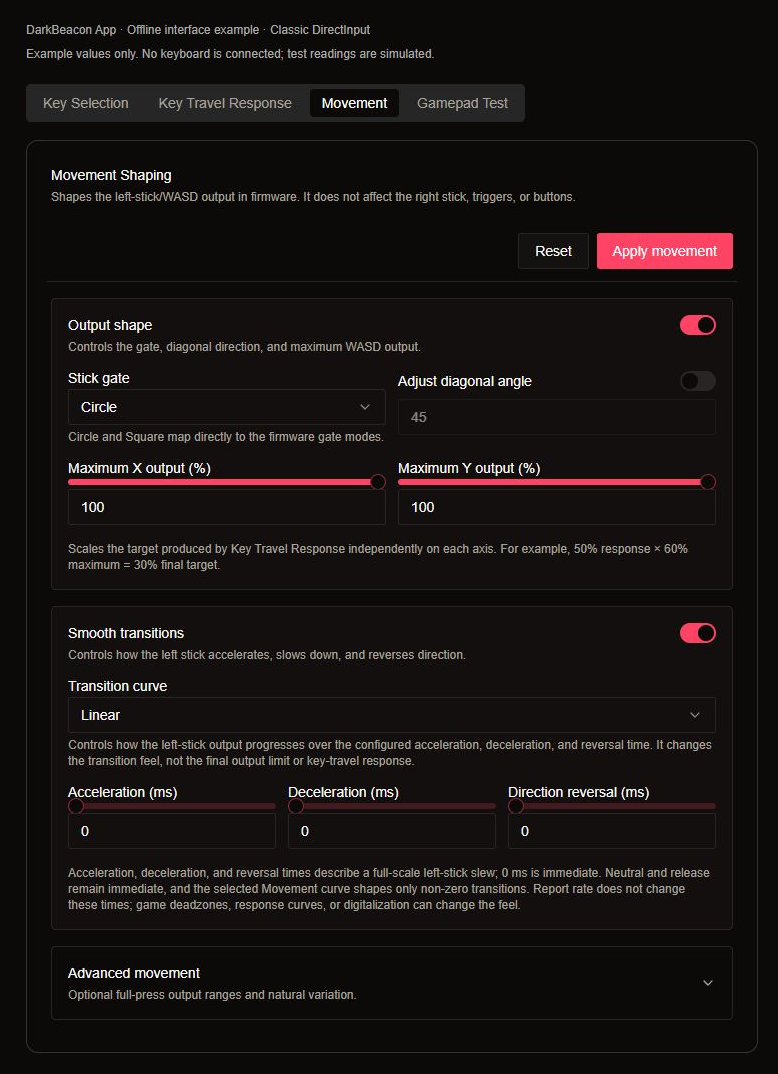
This is an offline interface example using DarkBeacon App's controls. The values illustrate the settings, not a recommended profile or a measured hardware result.
Key Travel Response determines output from press depth. Movement then shapes the left-stick result, or the X/Y pair in Classic DirectInput. It does not change the right stick, triggers, additional simulation controls, or controller buttons. Map a key to a movement direction first; mapping W to a button will not make that button respond to Movement settings.
Output shape
Enable Output shape to use the gate, diagonal angle, maximum output, and the optional Advanced movement controls that depend on it.
| Setting | Observable effect | How to test it |
|---|---|---|
| Stick gate: Circle | Keeps diagonal reach within a round boundary. A full diagonal shares its strength between the two axes. | Compare a full sideways press with a full diagonal. Equal diagonals reach about 71% on each axis with 100% limits. |
| Stick gate: Square | Allows both axes to reach their full limits together at a diagonal. | Hold two perpendicular directions fully and check the corner reach. A game may still impose its own round limit. |
| Maximum X output (%) | Scales sideways output. At 60%, an otherwise full sideways press targets 60%; a half press targets roughly 30%. | Press only left or right, first partially and then fully. |
| Maximum Y output (%) | Scales forward/backward output independently of X. | Press only forward or backward and compare with sideways motion. |
| Adjust diagonal angle / Diagonal angle (°) | Changes the balance between horizontal and vertical movement when both are active. At 45° the balance is unchanged; smaller angles favor horizontal movement and larger angles favor vertical movement. | Hold equal-depth diagonal presses in all four directions. Pure horizontal and vertical presses keep their directions. |
Maximum output scales lighter presses too. It is different from Independent X/Y output ranges, which varies a ceiling and leaves input below that ceiling unchanged. Keep both maximum values at 100% initially. Lower them only when you deliberately want to limit output.
Smooth transitions
Enable Smooth transitions to control how quickly non-zero movement changes. Start at 0 ms, then increase one time at a time.
| Setting | What it changes |
|---|---|
| Acceleration (ms) | The time scale for building toward stronger output in the same direction. Higher values make the build-up more gradual. |
| Deceleration (ms) | The time scale for reducing output, such as easing a full press to a lighter press. It also controls an ordinary full release when Decelerate to stop is active. With Stop immediately, full release still returns immediately. |
| Direction reversal (ms) | The time scale for moving from one non-zero direction to the opposite direction. It is easiest to check with Last Press Priority. |
| Transition curve | How output progresses during the chosen time. Linear, Ease-in / ease-out, S-curve, and Exponential change the transition's feel, not the final maximum or the depth-response curve. |
Times describe a full-range change; smaller changes finish sooner. With a 100 ms Acceleration setting and no other limits or variation, a move from neutral to half strength takes roughly 50 ms. A full left-to-right reversal uses the Direction reversal time. 0 ms means immediate.
Changing the Gamepad Polling Rate does not multiply or divide these timing settings or change ordinary keyboard polling. See Gamepad keyboard-output and polling-rate settings for the distinction. Game settings can still change the motion you see on screen.
Choose what happens after release
Under Smooth transitions, use After full release when the connected keyboard offers it.
| Choice | What happens when you let go |
|---|---|
| Stop immediately | The movement output returns to neutral immediately. This is the default, even if Deceleration is above zero. |
| Decelerate to stop | Ordinary release gradually reduces the movement output to neutral. Enable Smooth transitions and set Deceleration above 0 ms for this choice to take effect. |
For gradual stopping, choose Deceleration curve when available. Follow the Movement curve uses the existing Transition curve. Independent exponential ease-out reduces output quickly at first and more slowly near neutral; it applies to same-direction decreases and ordinary release while gradual stopping is active. Acceleration and direction reversal keep their own behavior. If the keyboard offers only the Movement curve, use that option.
Select Apply movement, wait for confirmation, and compare a full press, a partial press, and a complete release in the controller tester or game. The stopping time scales with the remaining output: releasing from partial movement can reach neutral sooner than releasing from full movement. Repeated taps in the same direction can continue movement before it has stopped. With Direction reversal at 0 ms, pressing the opposite direction takes effect immediately during deceleration.
Gradual stopping starts when the effective movement input reaches zero. Opposite inputs cancelled by Stick Priority and forced returns to neutral still stop immediately. With a circular boundary, or Output shape turned off, releasing one diagonal direction can temporarily reduce the other axis too. The character's visible stopping behavior also depends on the game.
To remove the glide, select Stop immediately, apply it, and save. Turning Smooth transitions off or setting Deceleration to 0 ms also makes release immediate, but retains the gradual-stopping choice for when those settings are enabled again. A retained deceleration-curve choice takes effect only while gradual stopping is active.
Advanced movement
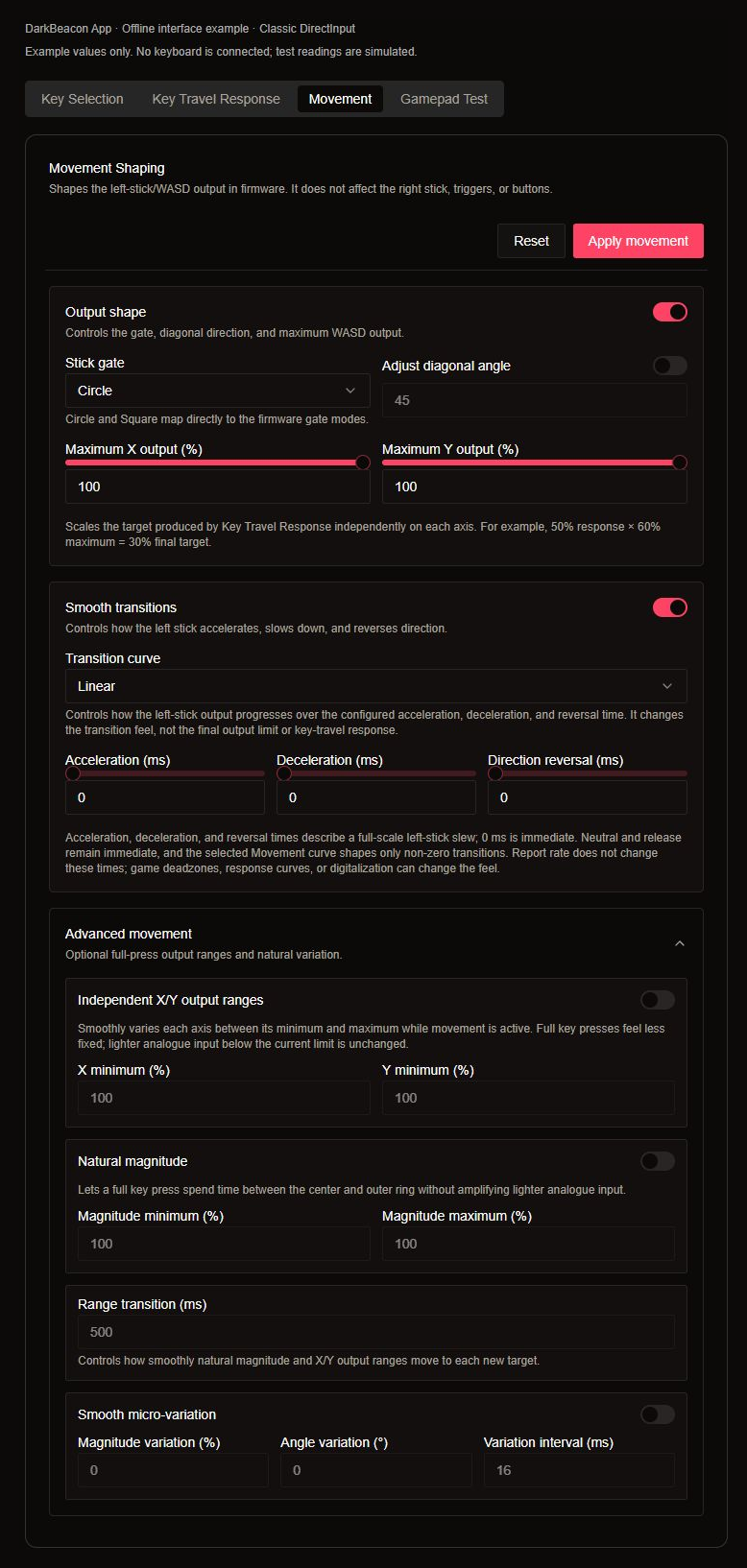
Open Advanced movement after the basic mapping, curve, and release behavior work correctly. These optional controls add variation during active movement. They require Output shape to be enabled and should remain off when you want an identical response on every press.
| Control | What it does | Practical check |
|---|---|---|
| Independent X/Y output ranges | Varies each axis's ceiling independently between its minimum and maximum. Maximum X/Y output supplies the upper limits; X minimum and Y minimum supply the lower limits. | With an X range of 90–100%, a sustained full horizontal press can vary near that range. A 50% input below the current ceiling is not raised to 90%. |
| Natural magnitude | Varies an overall movement-strength ceiling between Magnitude minimum and Magnitude maximum. It reduces stronger input to that ceiling without boosting lighter input up to the minimum. | Hold a full diagonal, then a light one. The full press varies in strength; a light press below the current ceiling stays light. |
| Range transition (ms) | Sets how gradually the natural magnitude and independent X/Y ceilings move to their next targets. | Compare a shorter and longer interval while holding steady. A longer interval makes changes more gradual. |
| Smooth micro-variation | Adds small strength and angle variations while moving. Magnitude variation controls strength, Angle variation controls direction, and Variation interval controls how often the variation changes. | Try a small amount on one setting, hold steady, then release fully. Neutral should remain neutral. |
When enabling Independent X/Y output ranges, at least one minimum must be lower than its maximum, and neither minimum may exceed its maximum. Natural magnitude requires its minimum to be lower than its maximum. Smooth micro-variation requires a non-zero magnitude or angle amount. The App provides starting values when enabling a group that has no usable range; inspect them before applying.
If several groups are enabled, their effects combine. Existing maximum limits and the gate still bound the result. Do not use variation to compensate for an incorrect mapping, unstable calibration, or unintended resting input. Turn it off during troubleshooting so repeated presses are easy to compare.
Apply and compare
Edit one group, select Apply movement, and wait until the App confirms that the device matches the settings. Editing fields alone does not establish that they are active on the keyboard. If the draft is retained after a synchronization error, fix the connection and use Retry.
For Classic DirectInput, open Gamepad Test and inspect the X / Y Axis marker. For XBox Input, test in the target game or Windows game controller settings; the App's built-in tester is unavailable for that type.
Compare these inputs after each change: a light single direction, a full single direction, a full diagonal, a fast reversal, a sustained press, and a complete release. Check that unrelated right-stick or trigger mappings still behave as before. See Map keyboard input to gamepad controls for the tester's labels and neutral positions.
Reset changes the Movement draft to its no-effect baseline. Select Apply movement to activate that baseline, then Save to keyboard to retain it. This resets Movement settings; it does not erase your key mappings or perform a factory reset.
Confirm success
The left stick reaches the intended shape and limits, returns to neutral according to the selected release policy, and changes direction predictably. Right-stick, trigger, and button behavior remains unchanged.
Save result
Apply movement previews the current profile on the device. Treat the result as persistent only after the App's main save action completes. Switching profiles restores the Movement Shaping values stored with the selected profile. If the App says the profile does not manage release, it displays the keyboard's existing policy; choose and apply a policy explicitly if you want the profile to control it.
Limits and cautions
If DarkBeacon App says the firmware is unsupported, the Gamepad Type is unknown, or the keyboard is reconnecting, do not keep pressing Apply. Restore the connection or complete the offered update first. Movement Shaping applies to Gamepad Mode, not PS5 mode.
Recovery
Choose Reset, apply the no-effect baseline, and save it. If the controller identity disappears, return to the previous Gamepad Mode and wait for the keyboard to reconnect before changing any other setting.
Related topics
Start with Map keyboard input to gamepad controls. See Update device firmware when the App requests a compatible firmware version.