DARKBEACON GUIDE
Get started with DB AI
Use DB AI for text, images, voice, applications, confirmed actions, support reports, history, and reminders.
Applies to: DarkBeacon App
What you will accomplish
Use DB AI in DarkBeacon App to ask about your keyboard, describe a key assignment, or create a lighting effect in plain language. This is the assistant previously described in these guides as Smart Assistant. You can type, use a voice conversation, or record one request with an assigned AI Talk key. Desktop Pet provides another on-screen way to interact with the assistant.
Applies to
Steps
- Open DarkBeacon App and sign in. Connect and select your keyboard before requesting device changes.
- Follow Open DB AI below to open the conversation panel.
- Type a short request, or follow Use voice input. Start with one clear goal, such as "Explain Rapid Trigger" or "Create a blue wave lighting effect for my keyboard."
- For AI lighting, follow the visible creation progress and wait for a final preview instead of submitting the same request repeatedly. To recolor an existing animation without another generation request, open RGB Settings > AI > Adjust colors. The floating Color adjustment layer window previews your changes live; see Adjust keyboard lighting for selection, color modes, gradients, and saving.
- Open the matching configuration page and preview what it generated.
- For device settings, choose Save to keyboard when the device page offers it and confirm success. Follow the relevant feature guide for effects that need the App to remain running.
Open DB AI
Click the pink DB AI icon at the top right of DarkBeacon App; its tooltip is Open DB AI. Sign in if prompted. The DB AI side panel opens with an Ask DB text box. Wait for any starting or connection message to clear before sending a request.
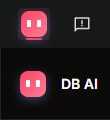
The upper pink icon is the entry button. The lower icon and DB AI label are the heading of the opened panel. This close-up excludes the account controls.
Type your request and click Send, or press Enter. Use Shift + Enter for a new line. Read the reply and any progress card before sending the same request again. The Stop button during generation stops the current response; review the device page before assuming any applied change has been undone.

From left to right: Ask DB, AI settings, Voice input, and Send. The send arrow is dimmed because no request has been typed; the microphone button is an entry to voice, not proof that recording is active.
The AI Chat keyboard action opens or closes a separate DB AI chat window, rather than the App's side panel. Opening a chat is not the same as starting microphone capture. Use Keyboard shortcuts to check the assigned action.
Send images with a question
In the App's DB AI side panel, choose Send reference image to select an image, or paste a copied image into Ask DB. Review the attachment thumbnails and remove any unwanted image before sending. Add a written question, such as "Explain the settings shown in this screenshot," then choose Send. The images accompany that message for the assistant to analyze; an image alone cannot be sent without text.
Each message accepts up to 4 images, with a maximum of 10 MB per image. Supported formats are PNG, JPEG, GIF, WebP, and BMP. If an image is rejected, check its format and size, or remove an attachment before adding another. Review screenshots for private information before sending them.
The composer image above illustrates the text and voice controls; the current side panel also provides Send reference image, previously labeled Add image. These attachment instructions apply to the side panel where that control appears.
Use voice input
- Open DB AI and click AI settings, the sliders icon beside the input box. Under Audio devices, choose the Microphone you intend to use and the Speaker you want to hear.
- Click Test speaker and check that you can hear it. If the App says audio is unavailable and asks you to start voice once, click Voice input, wait for initialization, then reopen AI settings.
- Click Voice input, the microphone icon, to start a voice conversation. If access is blocked, allow microphone access in your operating system. On Windows, the panel can provide Open microphone settings.
- Wait for the starting message to clear. Speak a short request while the panel shows its listening or recording state, then pause for the reply. Check the conversation text as well as the audio; a moving waveform alone does not confirm the request was understood.
- Use Mute mic to pause your microphone and Unmute mic to resume. During Speaking…, use Stop to interrupt the spoken reply. These are different operations: stopping a reply is not ending the voice session.
- Choose Exit voice when finished. Confirm the voice controls disappear and the text input returns. Do not rely on simply closing or hiding a chat window to end microphone use.
Keyboard microphone availability
Built-in microphone support depends on the purchase batch of your keyboard, including Flux 68 HE. Do not assume every unit of the same model includes it. Open AI settings > Audio devices > Microphone: if DB keyboard mic appears, the connected keyboard has a hardware microphone function available for DB AI. Seeing this option does not mean recording has started.
If DB keyboard mic is not listed, you can still use DB AI voice with another working microphone available to your computer, such as a headset, laptop, or USB microphone. System default follows the computer's default input; select a named microphone to use a specific device. Check microphone permissions and the selected input before speaking.
Current use limit: DB keyboard mic is available only for DB AI voice interaction. It appears in DB AI's microphone selector, not in the Windows system microphone options. Its absence from Windows input-device settings is expected and does not by itself indicate a fault. It cannot currently be used for game voice chat, online meetings, recording software, or other applications. Use a system microphone for those purposes.
With no saved input preference, the App can choose an available keyboard microphone automatically. Check the selected input after changing keyboards or headsets. If a previously selected keyboard microphone is unavailable, the App can fall back to the system default.
Microphone privacy: When the current Microphone selection is System default or another microphone, DB keyboard mic does not operate or capture sound. To keep the keyboard microphone inactive, explicitly select the input you want and confirm the selection before starting voice, particularly when no input preference has been saved. Seeing DB keyboard mic in the list does not activate it, and selecting it alone does not start recording. Another selected microphone can still capture audio during a voice session; use Exit voice when you want to end that session.
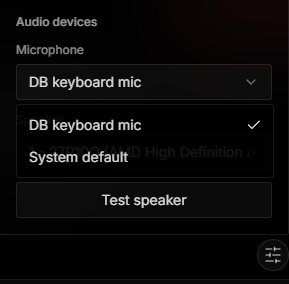
In this example, DB keyboard mic is available and selected, as indicated by the checkmark. Choose System default to use the computer's default microphone instead. This is an example from a keyboard with microphone support; other purchase batches may not show DB keyboard mic. Selection alone does not confirm that recording is active. Test speaker checks the selected audio output; its presence does not establish that the keyboard has a built-in speaker.
The Keyboard mic capturing indicator means the keyboard microphone is currently capturing audio. If the App reports that the microphone is unavailable or cannot record, select another working input rather than continuing to speak without confirmation.
Keyboard shortcuts
These are the current App's default assignments for supported keyboards with the corresponding right-side keys. Existing profiles, customized mappings, and other layouts can differ. Open the selected keyboard's Remap page and inspect the Fn layer before relying on a combination. The action shown there is more important than a remembered key combination.
| Action in the App | Default combination where available | What it does |
|---|---|---|
| AI Chat | Fn + Right Ctrl | Open or close the separate DB AI chat window. It does not itself start a voice conversation. |
| AI Voice | Fn + Right Alt | Turn voice conversation on or off. Speak naturally once it is ready; you do not need to hold the keys while speaking. |
| AI Talk | Fn + Right Shift | Tap once to start recording a request; tap again to finish and send it, then leave recording mode. Releasing the keys alone does not finish recording. |
| Send in the App's text box | Enter | Send the typed request. |
| New line in the App's text box | Shift + Enter | Add a line without sending. |
AI Voice and AI Talk are separate choices. Use AI Voice for a conversation and AI Talk for a deliberately started and finished recording. If a voice conversation is already running, AI Talk does not start another recording over it; the App prompts you to speak in the current call. Exit voice first if you want to switch to tap-to-record use.
To change an AI shortcut, use Remap and the AI action the App offers for the selected key and layer. Preserve any important existing assignment, test the new action, and save the profile/device settings as offered. A key reassigned to another action or disabled is not a reliable AI shortcut. Do not factory-reset the keyboard just to restore access to DB AI: use the top-right icon and review the mapping instead.
Open an installed application
Ask DB AI to open an application or game installed on this Windows PC or Mac, for example, "Open Spotify." You can type the request or use voice input. Keep the App running and DB AI connected; this workflow requires compatible App and DB AI versions.
- Use the application's name in your request. You do not need to enter its executable path or a command.
- Watch the Opening an application card. It can show Reading installed applications, Matching your request, Finding possible applications, and Opening the selected application as the request progresses.
- If DB AI identifies one clear match, it can open it directly. If it presents several numbered candidates, review their names and click the one you intended.
- Confirm that the intended application opens. If no suitable match is found, check that it is installed and try its displayed name. A request to open an application does not install it.
If a candidate selection cannot be submitted, check that DB AI is connected and try again. If this workflow is unavailable, check both APP and DB AI under Updates; see Adjust App settings and updates.
Review an AI action confirmation
When DB AI requests an action that needs approval, a Confirmation needed card appears in the conversation. Examples include deleting a profile, macro, advanced key, or a sound from a draft. The same confirmation controls are available in the main DB AI panel and Desktop Pet chat.
- Read the action and its target before deciding. For a command, use Show full command if the text is collapsed.
- Choose Allow only when the displayed action matches your intention, or Deny to refuse it. Allow applies to this request only; it does not approve future actions.
- Check that your answer was submitted. If Couldn't send your answer. Please try again. appears, the decision has not been confirmed; retry while the card is still pending.
- After allowing, read the follow-up result and verify the affected item. Allowed confirms permission, not successful completion.
The Auto-deny in countdown shows how long you have to respond. Leaving the request unanswered until it expires does not allow it to run. Denied, Expired — not run, and Cancelled — not run are different from Allowed. If you still want an expired or cancelled action, make a new request and review its new confirmation. Stopping a later reply does not undo an action that has already completed.
For a Submit a support report card, review the displayed message and choose whether to Include diagnostic logs, then use Submit to support or Cancel. See Contact support and send diagnostics for the full flow.
Check the result of an AI task
Follow the task card through its final result, then inspect the relevant device page. For a generated macro, distinguish a result that confirms its key binding from one that says the macro has been created but is not bound yet. If it is unbound, open the macro page, assign it to the intended key, test it, and save as offered. Creating a macro alone does not make a physical key trigger it.
Click the energy balance in the AI panel to open Energy details and review usage. Saving or reusing a completed creation is separate from requesting another AI generation. See Understand energy and subscriptions.
Read earlier conversations
If the panel offers Legacy chat history, open it to read the earlier conversation available for this account on this computer. Use Load more for additional messages. Old attachment references may no longer open or may refer to content that has changed.
Old reminders shows a summary of earlier reminder settings. These archived reminders do not run automatically here, and reading an old message does not repeat its task. To use a reminder again, check your current reminder cards first, then explicitly ask DB AI to create it if it is missing.
Set a scheduled reminder
Ask DB AI in plain language, for example, "Remind me to stretch in 20 minutes" or "Remind me to take a break every hour." Include the time or interval and what you want to be reminded about. Keep the App running and DB AI available to receive the reminder on this computer.
Check the reminder card in the conversation. It shows the reminder's name, whether it runs once or repeats, and the next reminder time. Confirm that these match your request. You can ask DB AI to change, pause, resume, or delete the reminder; the card reflects its current state, and deleting the reminder removes its card. The card is a status display, so use the conversation to request changes.
When a reminder is due and you are away from the chat, Desktop Pet can show a bubble with a short preview of the reminder. Keep Desktop Pet enabled if you want these bubbles. Open the conversation to read the full message. When the DB AI conversation is already in view, the App avoids an extra pet bubble; check the chat for the reminder itself.
Pet appearance and notification preferences
The pet is the assistant's on-screen form, and its own settings are separate from the configuration it generates.
When you manually start the App with DB AI available, the assistant can greet you in the App's selected interface language. Automatic startup and Do Not Disturb skip this greeting. A missing greeting does not by itself mean chat is unavailable; open DB AI to check its state.
- Choose a bundled appearance before you consider any Store option.
- Review any device-status, low-battery, disconnect, or rest reminder settings before you enable them.
- When work-hours, sleep, hide, or launch behavior is available, choose a schedule that does not interrupt games or work.
- Close or hide the pet and confirm how to reopen it before you leave the settings page.
Confirm success
DB AI opens through the intended entry, receives your typed or spoken request, and returns a visible reply. Verify microphone selection and Exit voice before relying on shortcuts. For generated device settings, the configuration page shows the expected changes and the device reports a successful save. The pet opens and closes predictably, and any reminder or status behavior matches the controls you chose.
Save result
Generation, profile application, and device persistence are separate. Treat a result as saved to hardware only when the device page provides explicit success feedback. Pet appearance and reminder preferences are application or account settings and never reach the device.
For AI color adjustments, Save in the floating window updates the effect; Save New keeps the original separately. These effects still require DarkBeacon App to remain open. Saving the effect or its profile reference does not make the streaming animation run independently on the keyboard.
Limits and cautions
DB AI can help with supported key settings, macros, and lighting. Available actions depend on the current App, account, and connected device. A missing control does not establish support. Avoid speaking private information when voice input is active, and check the actual microphone selected rather than assuming the keyboard is the only possible input.
Recovery
Cancel before applying, stop automatic switching, or return to the last confirmed profile. Hide or exit the pet and turn off its launch or reminder setting if its window stays in the way. Restart the App once if the application state remains inconsistent.
If DB AI or voice does not respond
- DB AI will not open or send: open the App directly, check sign-in, connection and energy, and wait for any starting message. Try the top-right icon to separate a shortcut problem from a chat problem.
- You can type but voice hears nothing: check Microphone, Mute mic, operating-system permission, and the App's visible audio message. Try a working headset or system microphone if the keyboard mic is unavailable.
- You cannot hear replies: check Speaker, system output volume, and Test speaker. Reading the reply in chat helps distinguish an output problem from an unanswered request.
- An AI key does something else: check the active profile, Fn layer, and assigned AI Chat, AI Voice, or AI Talk action. Do not assume Fn + Right Alt is the chat-window shortcut.
- You are unsure whether recording has ended: use Exit voice in the panel and confirm it returns to text input before continuing with a private conversation.